

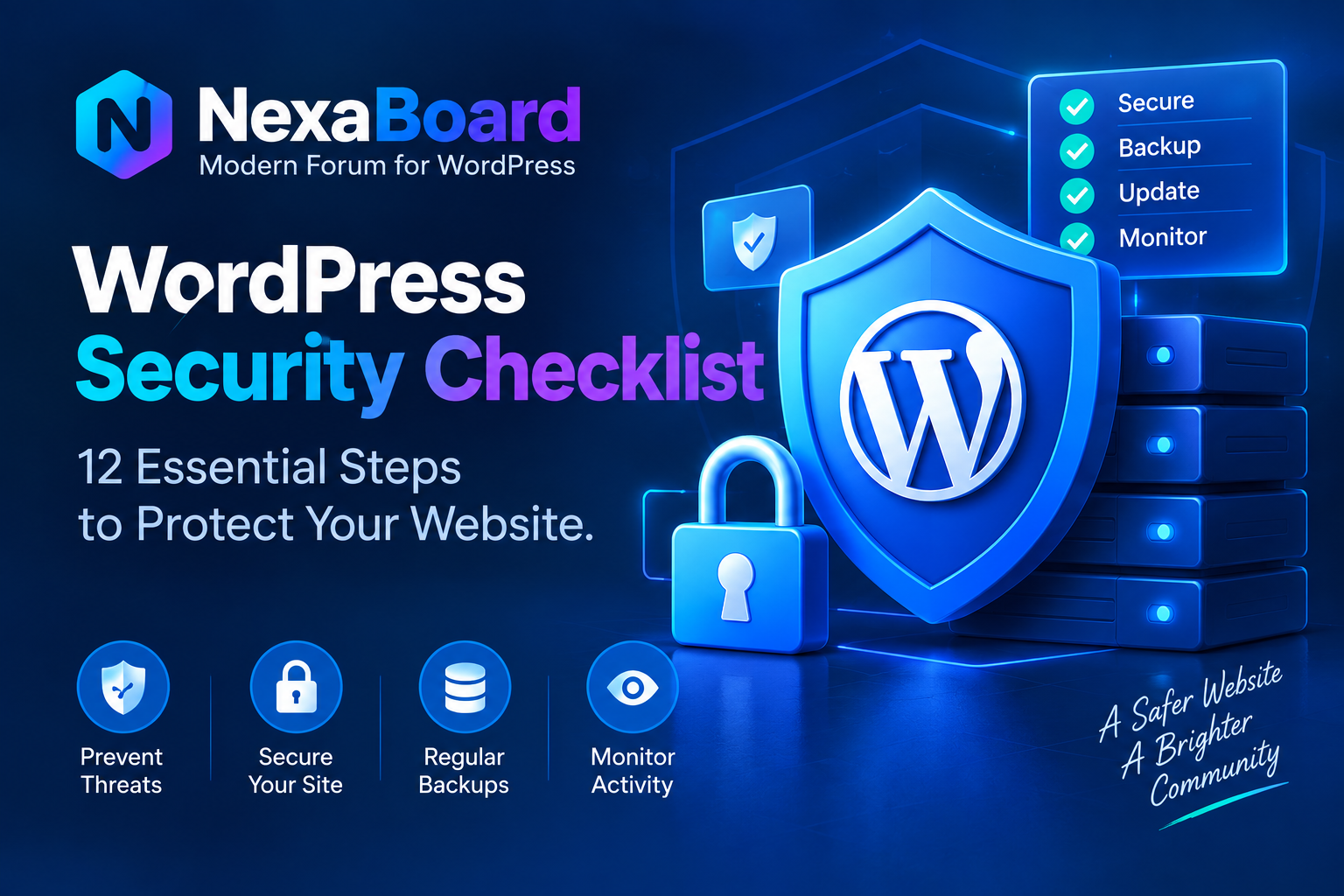
WordPress security requires multiple layers of protection. Use this practical checklist to reduce common risks and keep your website safer.
WordPress Security Checklist: 12 Essential Steps to Protect Your Website
No website can be made completely immune to security threats.
However, administrators can significantly reduce risk by following basic security practices consistently.
Here are twelve important areas every WordPress administrator should review.
1. Keep WordPress Updated
Install supported WordPress core releases and security updates.
2. Update Themes and Plugins
Outdated third-party code can introduce vulnerabilities even when WordPress itself is current.
3. Remove Unused Software
Inactive themes and plugins still contain executable files.
If you no longer need them, remove them.
4. Use Strong Passwords
Administrator accounts should use unique, difficult-to-guess passwords.
Never reuse important passwords across different services.
5. Enable Two-Factor Authentication
Two-factor authentication adds another barrier if a password becomes compromised.
6. Limit Administrator Accounts
Users should receive only the permissions required to perform their tasks.
7. Use HTTPS
HTTPS protects information exchanged between visitors and your server while data is in transit.
8. Maintain Reliable Backups
Backups should be automatic, regular, and stored separately from the production website.
More importantly, test whether those backups can actually be restored.
9. Protect Sensitive Files
Review server permissions and prevent unnecessary public access to sensitive configuration or backup files.
10. Monitor Unexpected Changes
Unexpected administrator accounts, modified PHP files, unfamiliar scheduled tasks, or unusual redirects can indicate a compromised website.
11. Secure Custom AJAX and Form Requests
Custom WordPress development should validate user permissions, verify nonces where appropriate, sanitize input, and escape output.
12. Create a Recovery Plan
Know what you will do if the website is compromised.
Document where clean backups are stored, how credentials will be rotated, and how the website can be restored.
WordPress security works best as a collection of defensive layers rather than one security plugin or setting.